
How to choose what your home page shows
Your home page can show your latest posts, like a blog, or one page you've written, like the front page of a business website. You choose under Settings → Reading.
| Home page shows | Good for |
|---|---|
| Latest posts (the starting choice) | Blogs, news and magazines: the newest post comes first. |
| A static page | Businesses, portfolios and organisations: a welcome page that stays the same. |
Show a page on your home page
Step 1: Find the page's address
First write and publish the page you want as your home page, or use an existing one such as About. Then find its address:
- In the sidebar, open Pages and click the page.
- Under the title, Link shows the page's address. You need the last part, after the /.

- The part to copy: here about.
Step 2: Choose it in Settings → Reading
- Open Settings and click the Reading tab.
- In Homepage shows, choose A static page.
- In Static homepage, type the page's address from step 1, exactly as shown and without any /.
- Press Save changes.
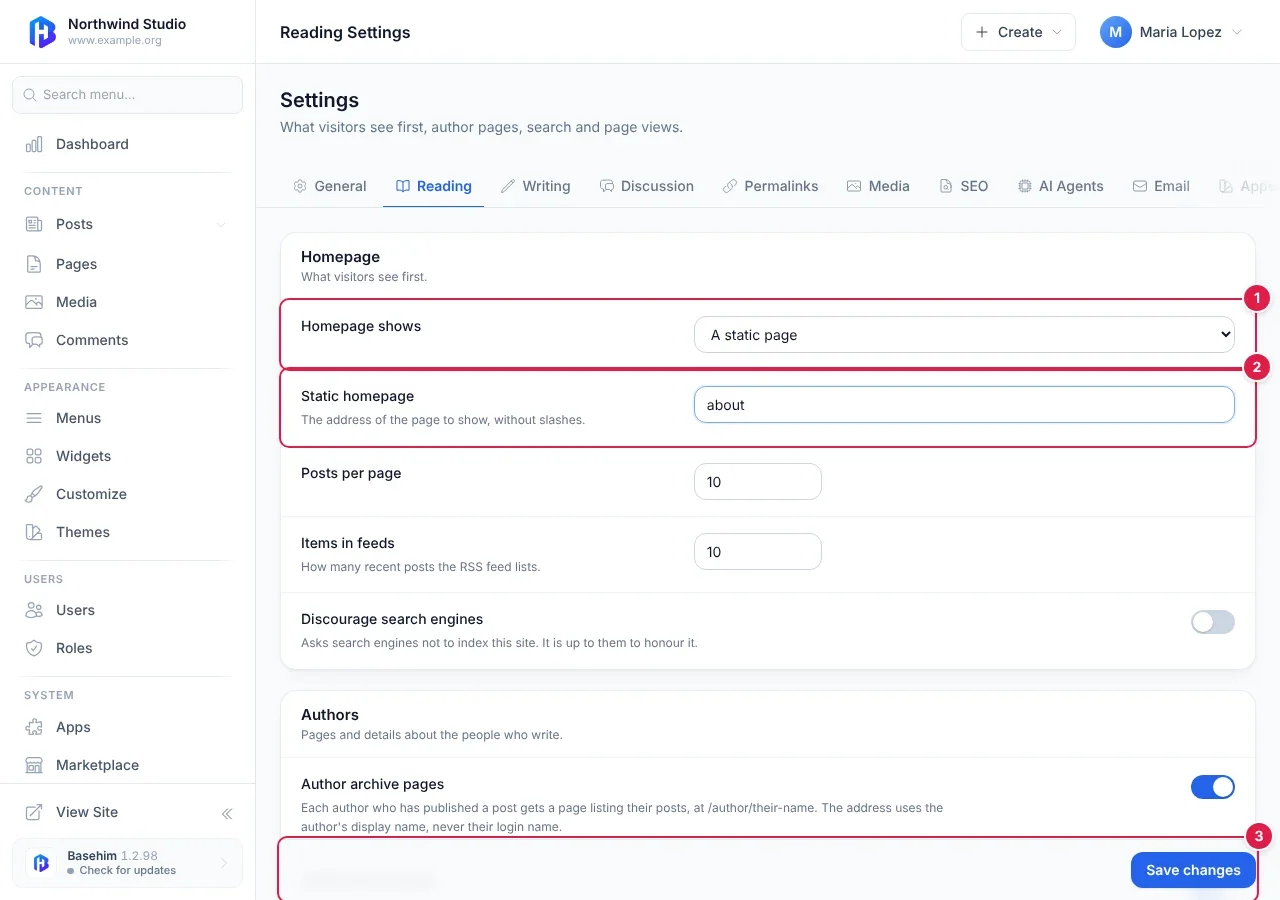
- Homepage shows: A static page.
- Static homepage: the page's address, here about.
- Save changes.
Open your site to check:
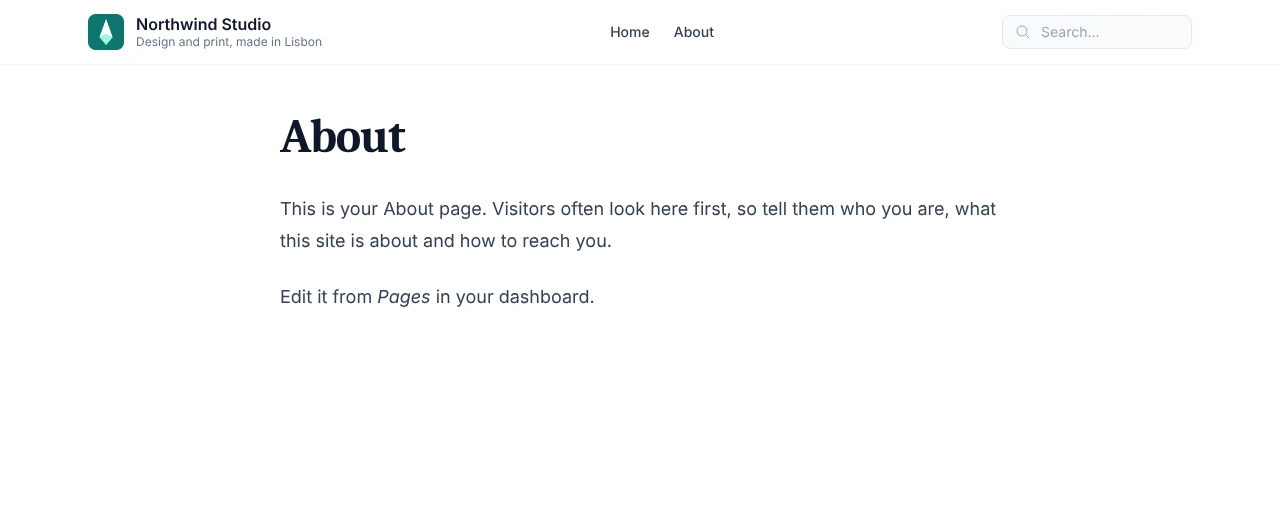
If your home page doesn't change
Basehim shows your latest posts instead when it can't use the page you typed. Check that:
- the address is typed exactly as the page's Link shows it, with no spaces and no /;
- the page is published, not a draft;
- it is a page, not a post. A post's address doesn't work here.
Where do my posts go?
With a page on your home page, your posts are still on your site, each at its own address and in its category's list, and they still appear in search results and your feed. Basehim doesn't yet have a separate "blog" page that lists the latest posts. To give visitors a way in, add your categories to your menu.
To go back to a blog-style home page, choose Latest posts in Homepage shows and save.
Related
Next: Back to the Guide
Need more help?
Every step of running your site, in order, with screenshots.
Leave a comment