
How to set up your site: name, tagline, logo and time zone
3 min read
Your site's name, tagline, logo, time zone and date format are set in two places: Settings → General for the words and time, and Customize for the logo and the small icon browsers show in tabs. It takes about five minutes.
The installer already saved the name, tagline and time zone you typed, so you may only need to add a logo.
Step 1: Name, tagline and time
- In the sidebar, open Settings. You land on General.
- Change what you need, as below.
- Press Save changes.
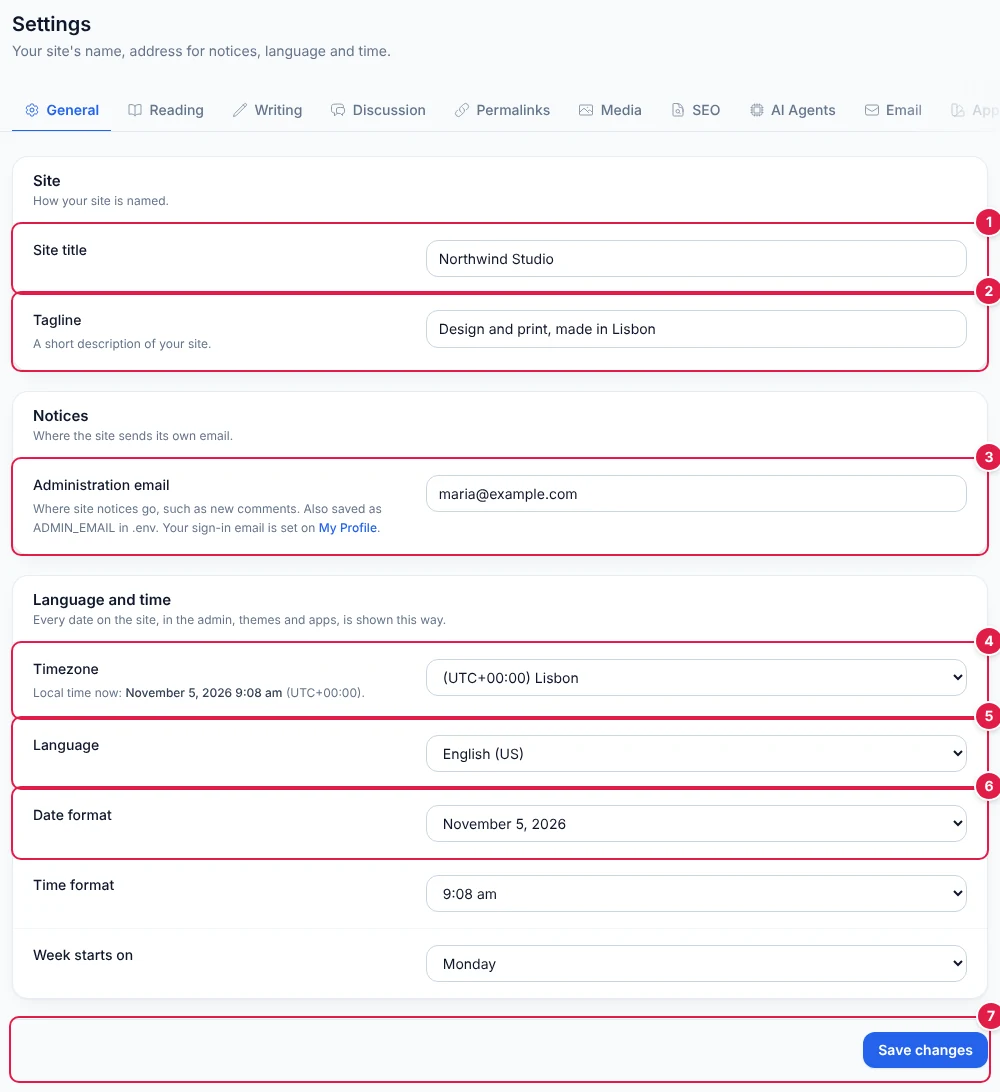
- Site title: your site's name. It appears in the header, in browser tabs and in search results.
- Tagline: a few words saying what the site is about, shown under the name. Leave it empty if you don't want one.
- Administration email: where the site sends its own notices, such as new comments. Your own sign-in email is changed in your Profile instead.
- Timezone: choose your city. Post dates and scheduled posts follow it. The local time underneath shows whether it's right.
- Language: the language your site is written in. It tells browsers and search engines; it doesn't translate the dashboard.
- Date format and the time format below it: how dates appear on your site and in the dashboard.
- Save changes. It stays at the bottom of the screen as you scroll.
Step 2: Add your logo and site icon
You need two images, which can be the same file:
- Logo: shown in your site's header, next to your site's name. A square image, such as your brand's symbol, works best, because the name is already written beside it.
- Site icon: the small picture in browser tabs and bookmarks (often called a favicon). Use a square PNG of 512 × 512 pixels.
- In the sidebar, open Customize. The left panel has your settings and the right side shows your site as it will look.
- Under Logo, press Choose.
- Press Upload and pick the image on your computer, or click one you uploaded before. Then press Select.
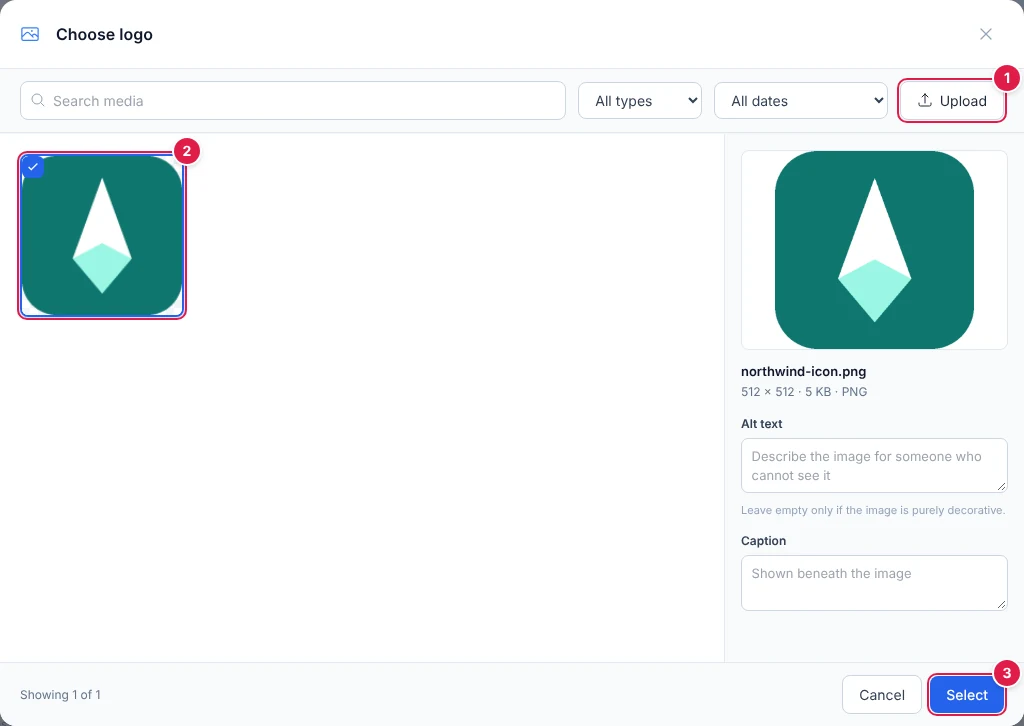
- Upload an image from your computer.
- Your images. The ticked one is selected, and its details show on the right.
- Select uses it as your logo.
- Do the same under Site icon.
- Check the preview, then press Save at the top.
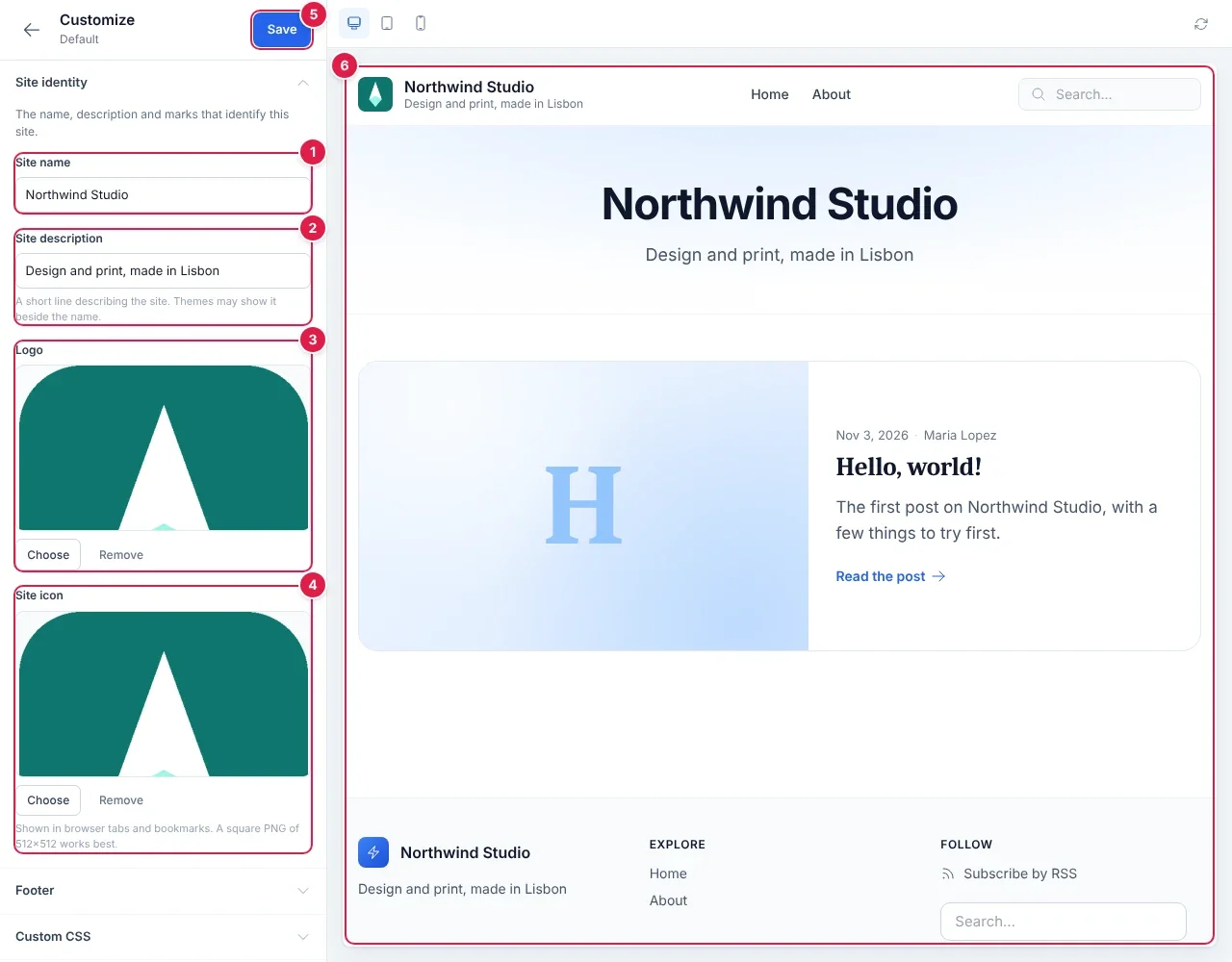
- Site name: the same as Site title in Settings → General. Change it in either place.
- Site description: the same as the Tagline in Settings → General, under another name.
- Logo, with Choose to change it and Remove to go back to none. The small preview here may cut off the edges of your image; the preview on the right shows it whole.
- Site icon, for browser tabs.
- Save. Nothing changes on your site until you press it.
- The preview of your site. The buttons above it show how it looks on a tablet and a phone.
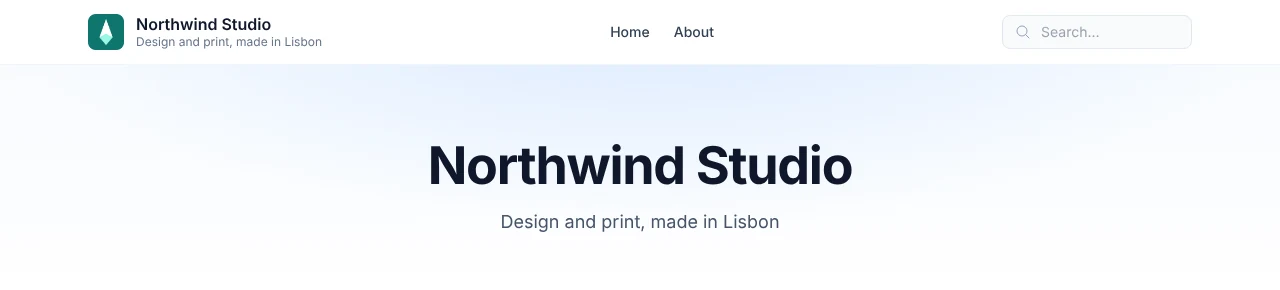
If the new logo or icon doesn't show straight away, reload the page: browsers keep icons for a while.
Tips
- Choosing a good site title helps people find you: use the name people would search for, such as your business name.
- Your logo and site icon are kept in Media with your other images. Removing one from Customize doesn't delete the file.
- Your footer text and custom styles are also in Customize. What else you can change there depends on your theme.
Need more help?
Every step of running your site, in order, with screenshots.
Leave a comment