
How to use the admin bar on your site
When you're signed in, your website shows a bar across the top of every page (Basehim calls it the admin bar). From it you can edit the page you're looking at, start a new post, search everything you can edit and see what needs attention, without opening the dashboard first. Visitors never see it.
It works with every theme, and apps you add can put their own menus in it.
What's in the bar
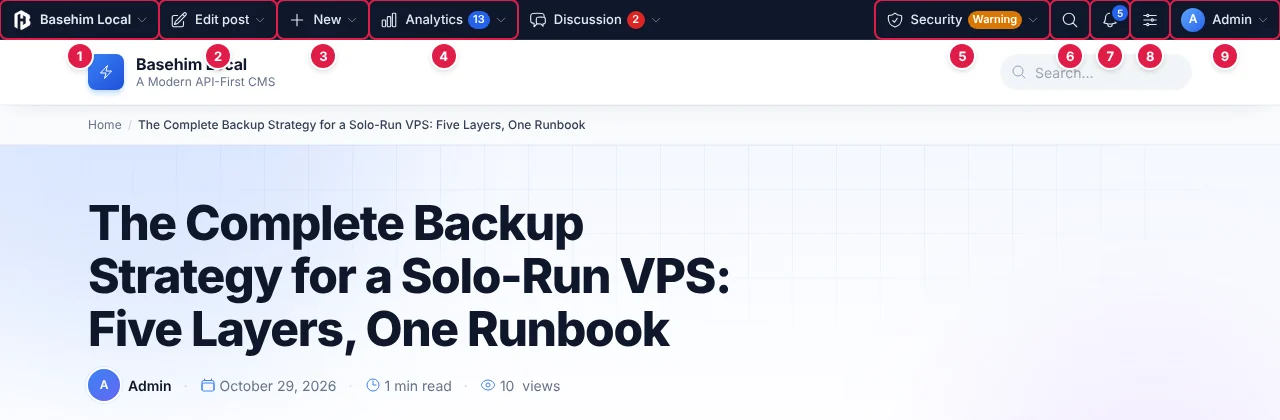
- The site: the Basehim mark and the site's name. Dashboard, content, appearance and system screens.
- This page: here Edit post. It changes with the page you are on.
- New: a post, a page, an app's content type, a category, media or a user.
- Apps' menus: here Analytics and Discussion, added by apps, with their badges.
- Apps' status menus sit on the right: here a security app's Warning.
- Quick search (Ctrl+K).
- Notifications, with the count of notices that need attention.
- Display: how the bar is shown, for you.
- Your account: profile, sign-in and security, dashboard, sign out.
Each link is shown only to people who can open the screen it leads to, using the same rules the admin applies. An author sees Posts and Media, not Settings. A contributor viewing someone else's post sees its details but no Edit button.
| Section | Contents |
|---|---|
| Site | Dashboard, Posts, Pages, Media, Comments (with the pending count), Menus, Widgets, Customize, Themes, Apps, Users, Settings, Updates (with the count), System |
| This page | Depends on the page; see The page's own menu |
| New | Post, page, each app content type you can create, category, media, user |
| Search | Posts, pages and app content you may edit, media, users, categories and tags, and apps' sources |
| Notifications | Core and app updates, comments waiting for approval, failing scheduled tasks, security warnings, and apps' notices |
| Display | Top bar or floating button, button position, tuck away, which optional sections show, turn off, hide until the next page |
| Account | Profile, sign-in and security, dashboard, sign out |
The page's own menu
The second menu is about the page you are looking at.
| On | You get |
|---|---|
| A post, page or app content item | Edit post (or page, event…): edit in the editor, Quick edit, the featured image, its categories, tags and taxonomies, its comments (with the pending count), all items, a new one, and a Details panel. Someone who can't edit it sees the details only. |
| A category, tag or app taxonomy term | Edit category, all categories, its posts in the admin, and a Details panel |
| An app content type's archive | Its admin list, and New |
| An author's page | Edit profile (yours) or Edit user |
| The home page | Customize the theme, what the home page shows, menus and widgets. A static home page also gets the page's own menu. |
| Search results | What was searched and how many results, and the same search in the admin's Posts and Pages |
| A missing page (404) | Why it is missing, with links to fix it |
| An app's page | The app's admin screen and its logs |
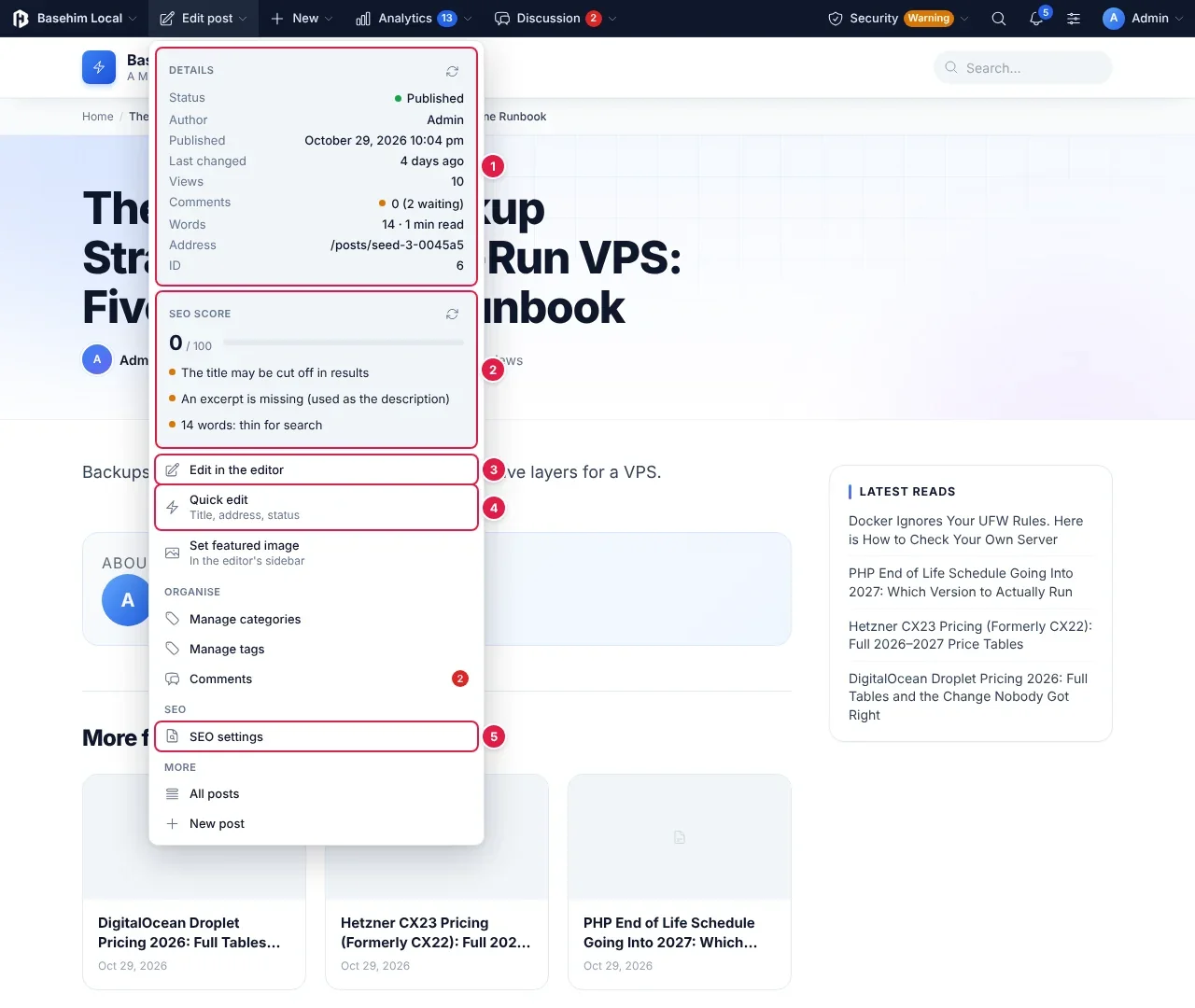
- Details: status, author, dates, views, comments (with those waiting), words and reading time, address and ID. Loaded when the menu opens; the arrows refresh it.
- A panel from an app: here an SEO app scores the post. Apps can add panels and items to these menus.
- Edit in the editor.
- Quick edit, without leaving the page.
- An app's item, under its own heading.
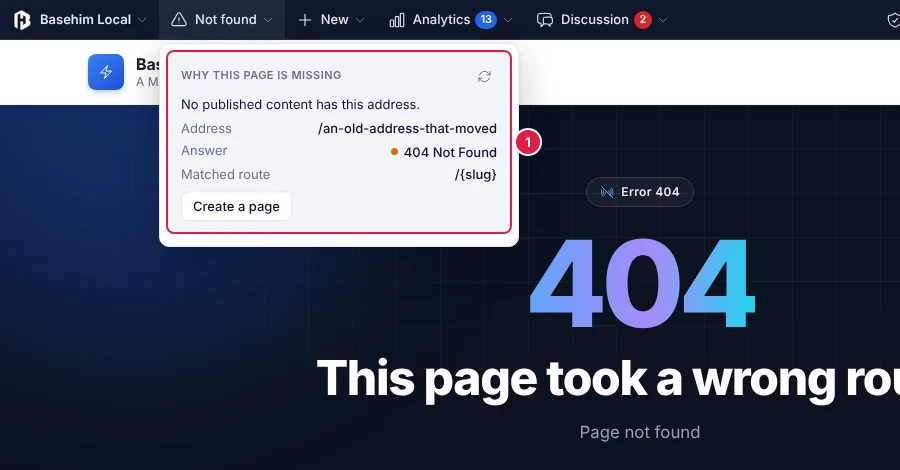
- The address that was asked for, and why nothing was found. When something has the address but isn't published (a draft, or in the trash), the panel says so and links to it in the editor. Otherwise it offers to create a page.
Quick edit
Quick edit changes a post's title, address, status, author, parent, order and comments setting in a dialog over the page. It uses the same checks as Quick Edit in the admin lists, including edit-conflict protection: if someone else saved the post after you opened the dialog, your save is refused instead of overwriting theirs. Taking a live post off the site asks first.
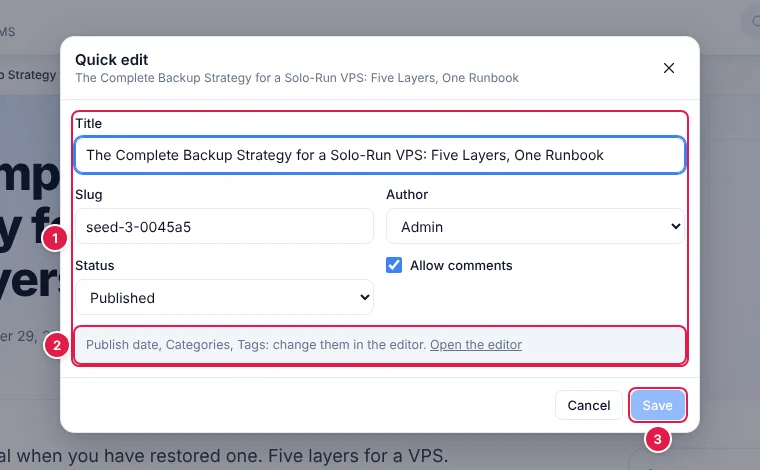
- The fields your role may change. An author doesn't get the Author field; someone who can't publish doesn't get Published.
- Categories, tags and the publish date have their own controls in the editor, which this note links to.
- Save is enabled once something changes. The page then reloads, or goes to the new address if the address changed.
Quick search
Search from any page with the magnifier or Ctrl+K (⌘+K on a Mac). Results are fast however large your site is, and they include only what you may open. A contributor doesn't find someone else's drafts. Each result opens its edit screen.
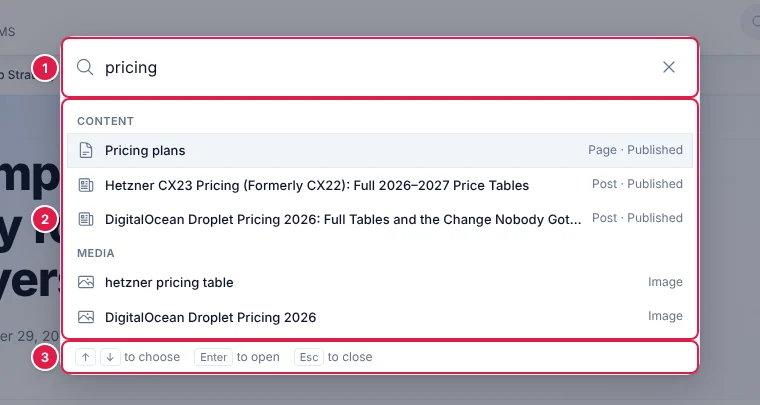
- Every word in any order, as everywhere in Basehim. At least two letters.
- Results grouped by source: content, media, users, categories and tags, then apps' sources.
- Keyboard: ↑ ↓ to choose, Enter to open, Esc to close.
Notifications
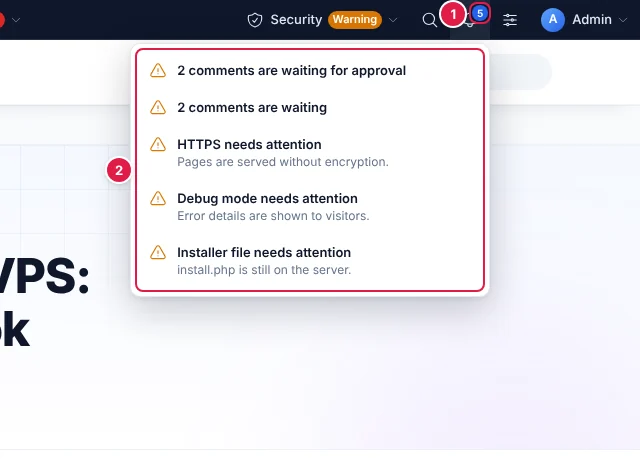
- The count covers notices that need attention.
- Most urgent first. Each opens the screen where it is dealt with. Here Basehim's comment notice, an app's, and three checks from a site-health app.
Basehim's own notices: Basehim and app updates, comments waiting for approval, scheduled tasks that are failing, and two security warnings for public sites (debug mode on, or no HTTPS). You see only those you can act on: comments for moderators, updates and system for administrators. Notices are fetched once after the page loads and reused for two minutes as you move around the site.
Display modes
| Mode | What it looks like |
|---|---|
| Top bar (default) | A slim bar fixed across the top. The page moves down by its height, and a theme's fixed or sticky header at the top moves down with it. |
| Floating button | A round button in a corner that opens a panel with the same menus, stacked. It takes no room on the page. Drag it to another corner and it stays there. |
| Off | Nothing at all. Chosen for the whole site, for some roles, or by a user for themselves. |
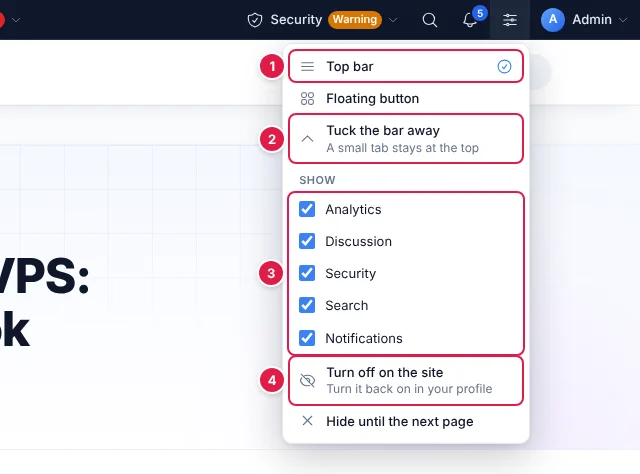
- Top bar or floating button, for you.
- Tuck the bar away: a small tab stays at the top to bring it back.
- Which optional sections show: apps' menus, search, notifications.
- Turn it off on the site, for you. Your profile turns it back on. Hide until the next page just gets it out of the way once.
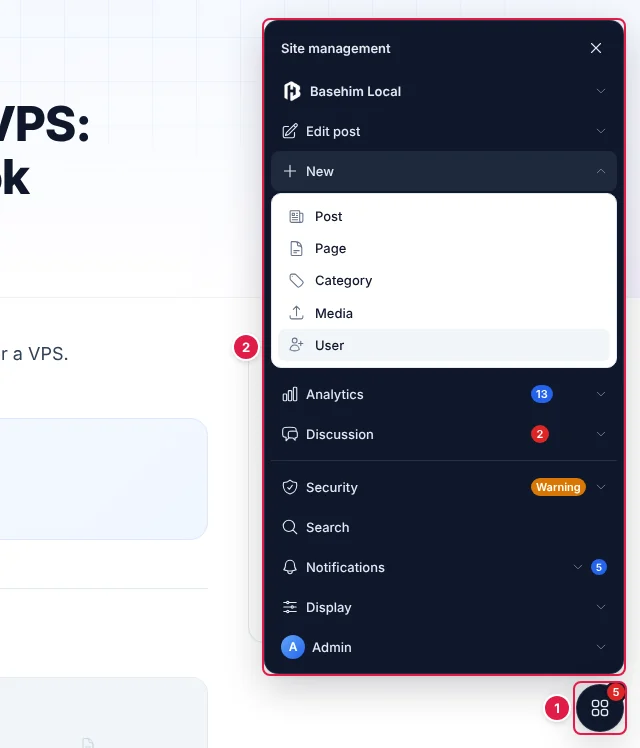
- The button, with the notification count. Drag it to any corner.
- The panel: every menu, stacked, each opening in place.
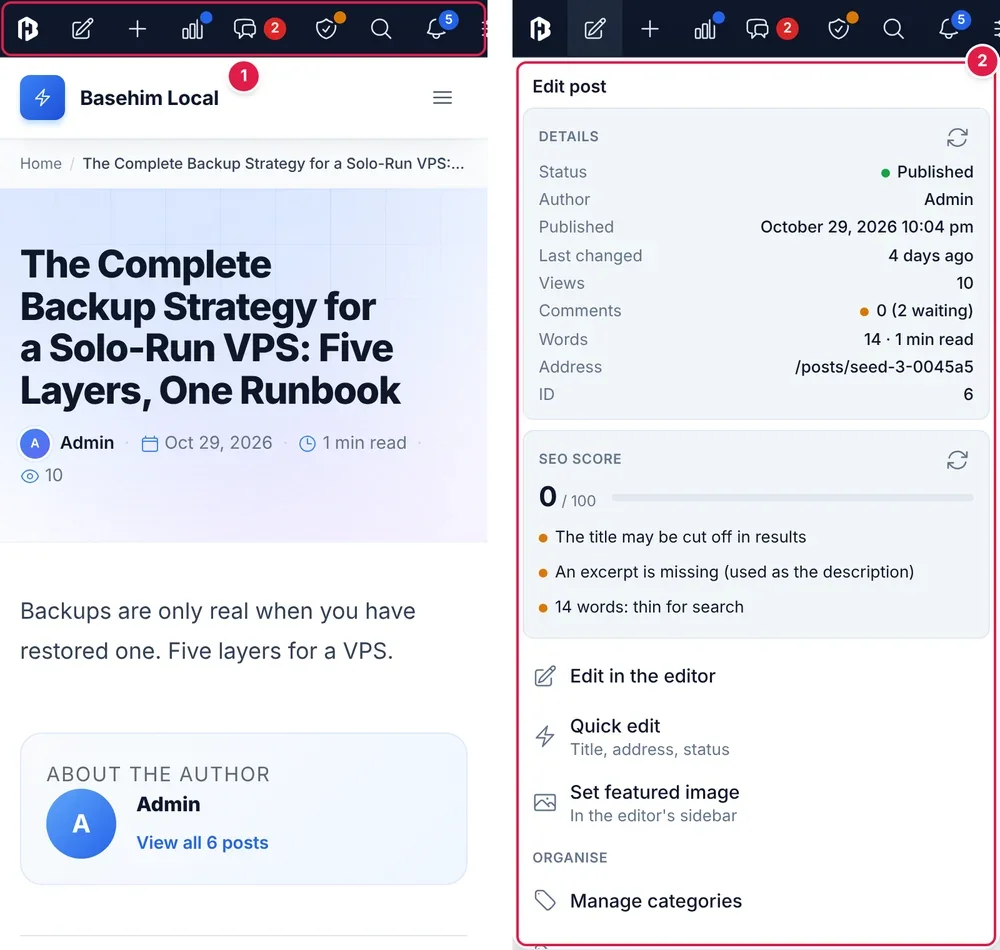
- Icons only, 46 px tall, with their counts. When there are more menus than fit, the row scrolls sideways.
- Menus open as full-width sheets with large rows, headed by their name.
Phones (782 px wide or narrower) can also get the floating button instead, or no bar at all: see On phones below.
Settings → Admin bar
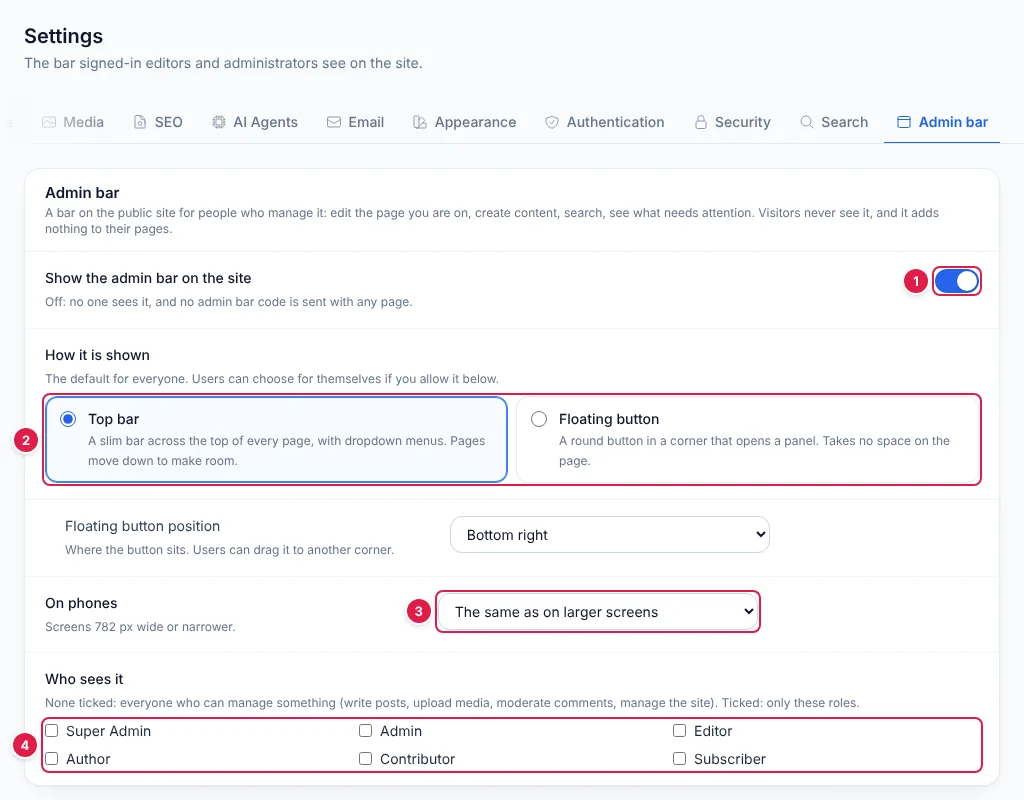
- Show the bar on the site. Off: no one sees it, and nothing is added to any page.
- How it is shown by default.
- On phones: the same, a floating button, or nothing.
- Who sees it. None ticked means everyone who can manage something.
| Setting | Options | Default |
|---|---|---|
| Show the admin bar on the site | on, off | on |
| How it is shown | top bar, floating button | top bar |
| Floating button position | any corner | bottom right |
| On phones | the same, a floating button, nothing | the same |
| Who sees it | roles; none ticked = everyone who can manage something | none ticked |
| This page's menu, Quick search, Notifications, Keyboard shortcut | on, off | on |
| Colours | each person's own light, dark or device setting (1.3.0), always dark, always light, follow the device. The accent colour is always the person's own | each person's own setting |
| Spacing | comfortable, compact | comfortable |
| Menu labels | icons and labels, icons only | icons and labels |
| Show the site's name, Show the user's picture | on, off | on |
| Top bar height | 32–48 px (phones always 46 px) | 40 px |
| Floating button size | 40–56 px | 48 px |
| Panel width | 280–440 px | 360 px |
| Dropdown alignment | under the item, right-aligned | under the item |
| Open menus on | click; hover with a mouse (touch always taps) | click |
| Hide the top bar | never; after 5, 10 or 30 seconds without use | never |
| Remember a tucked-away bar | on, off | on |
| Users may choose | display mode, button position, optional sections | all three |
"Everyone who can manage something" means anyone who can write, upload, moderate comments or change any part of the site, whatever their role. On a new site that is every role except Subscriber.
Whatever the settings, menus close with Escape or a click elsewhere, and work with the arrow keys.
Each person's own choices
Within what the site allows under Users may choose, each person picks their own display mode, button position and optional sections from the Display menu. They can also set the mode under Profile → Admin bar on the site, which is how someone who turned the bar off gets it back. The choices are kept with their account, so they follow them to any device.
Good to know
- Quick edit covers simple things: the title, the address and whether it's published. Categories, tags and the publish date are changed in the editor.
- The floating button snaps to the nearest corner of the screen.
- On a phone, if apps add many menus, the bar scrolls sideways. You can hide apps' menus you don't need from the Display menu.
- To turn the bar off for yourself, use the Display menu or Profile → Admin bar on the site. To change it for everyone, use Settings → Admin bar.
Related
Next: Back to the Guide
Need more help?
Every step of running your site, in order, with screenshots.
Leave a comment