
How to sign in and find your way around your dashboard
To manage your Basehim site, you sign in to its dashboard: open your site's address followed by /admin, for example example.com/admin. This page shows how to sign in, what everything on the dashboard is for, and how to get around on a phone or straight from your site.
Sign in
- Open your-site.com/admin in your browser. Bookmark it: it is always the same address.
- Type your username or email address, and your password. You chose both in the installer.
- Press Sign in.
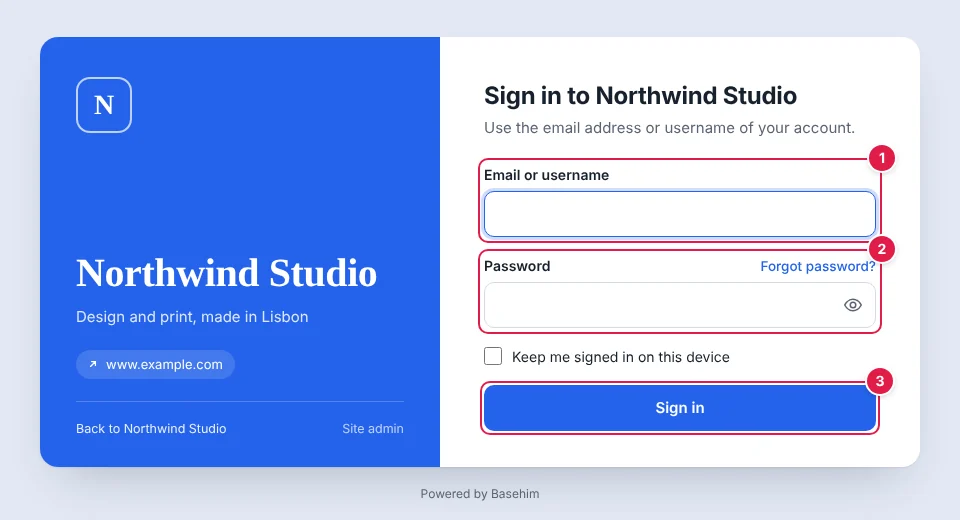
- Your username or the email address of your account.
- Your password. Forgot password? emails you a link to choose a new one.
- Sign in. Tick Keep me signed in on this device on your own computer, so you don't have to sign in every time.
If two-step sign-in is on for your account, Basehim then asks for a 6-digit code it emails to you. After several wrong passwords, sign-in pauses for a few minutes to keep out people guessing.
Your dashboard
After signing in you land on the dashboard: a summary of your site, with every part of Basehim one click away.
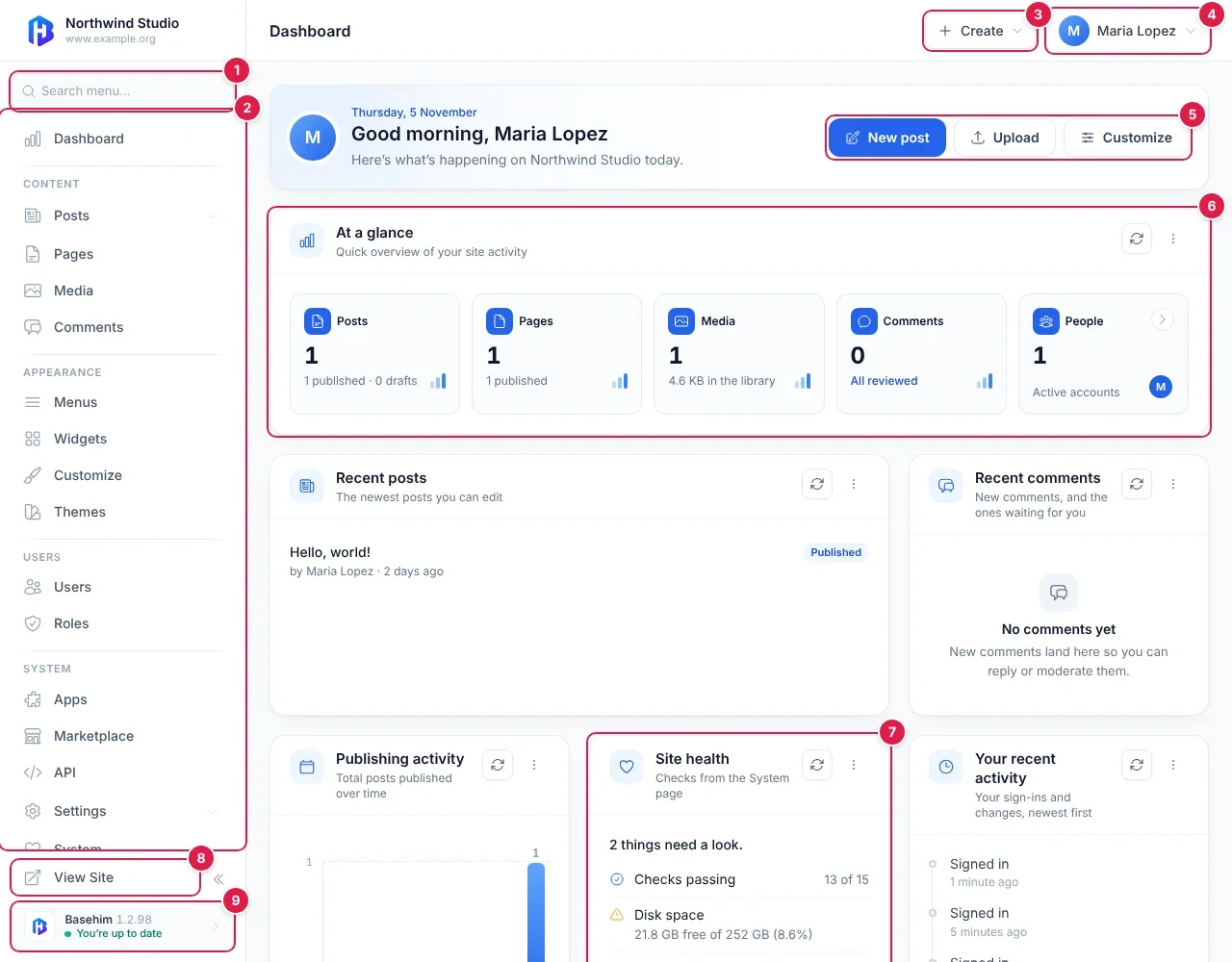
- Search menu: type a word such as logo or email to find the right screen.
- The sidebar: every part of your site, in groups (see the table below). Scroll it to see the rest.
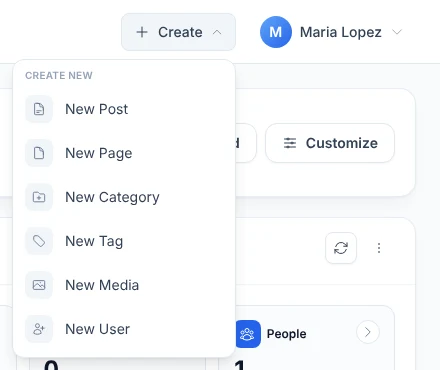
- Create: start a new post, page, category, tag, upload or user from any screen.
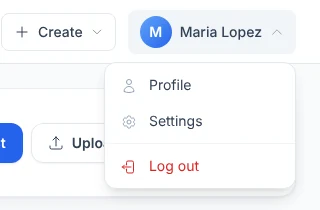
- Your account: your profile, settings, and Log out.
- Shortcuts: New post, Upload an image or file, and Customize your site's look.
- At a glance: how many posts, pages, files, comments and people your site has.
- Site health: anything that needs a look, such as an update or a site without HTTPS.
- View Site: open your website in a new tab.
- The version of Basehim you have, and whether an update is waiting. Click it to open Updates.
The cards below At a glance show your latest posts, new comments, how often you publish and your recent sign-ins. Each card has a refresh button and a menu.
What's in the sidebar
| Group | Item | What it's for |
|---|---|---|
| Dashboard | This summary page. | |
| Content | Posts | Articles and news, newest first. Open it for your categories and tags too. |
| Pages | Pages that don't change often, such as About or Contact. | |
| Media | Your images and files. | |
| Comments | Visitors' comments: approve, answer or remove them. | |
| Appearance | Menus | The links at the top and bottom of your site. |
| Widgets | Boxes in your site's sidebar and footer. | |
| Customize | Your logo, colours and other design choices, with a live preview. | |
| Themes | Your site's overall design. | |
| Users | Users | The people who can sign in. |
| Roles | What each kind of user may do. | |
| System | Apps | Extra features you've added, such as a contact form. |
| Marketplace | Find and add apps and themes. | |
| API | Connect other programs and AI assistants to your site. | |
| Settings | Your site's name, home page, email, comments, search engines and more. | |
| System | Health checks and logs, for when something isn't working. |
You only see the items your account is allowed to use. An author, for example, doesn't see Settings.
The Create and account menus
On a phone
The dashboard works on a phone too. The sidebar folds away behind the menu button.
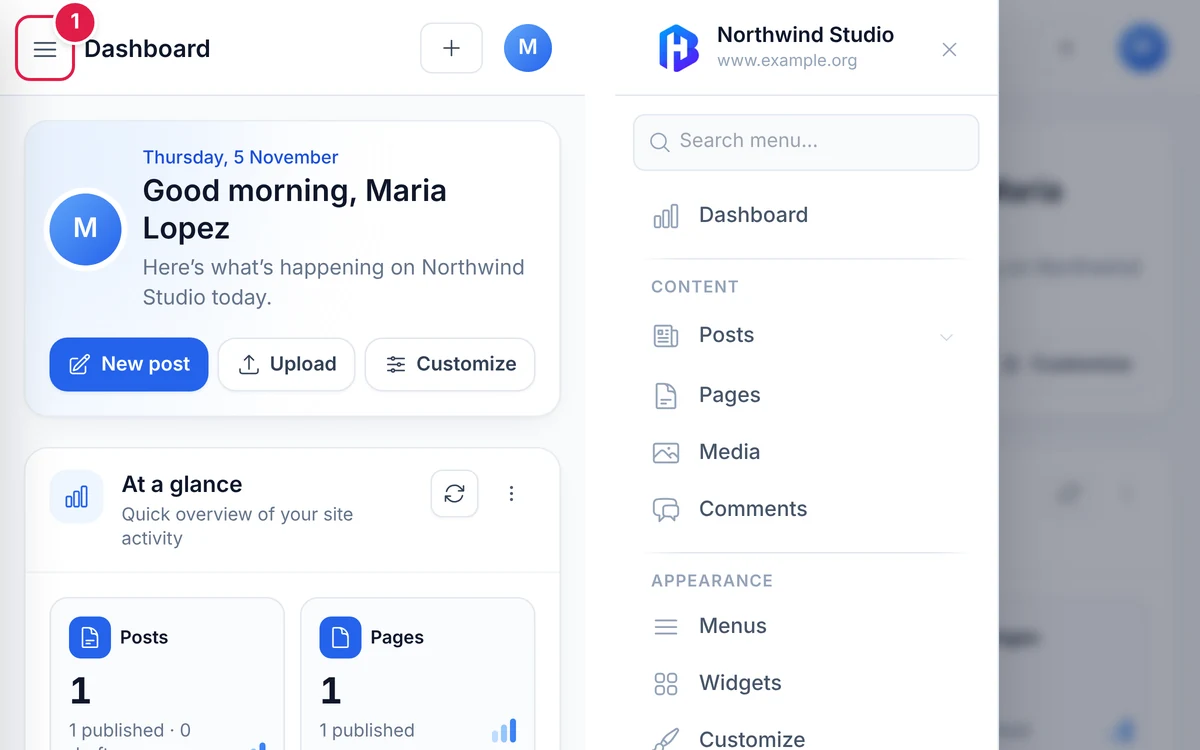
- The menu button opens the sidebar. The + button is Create, and the round button is your account.
The admin bar on your site
While you're signed in, a dark bar across the top of your website lets you jump to the dashboard or edit what you're looking at. Visitors never see it.

- Your site's name: links to the dashboard and its main screens.
- This page: changes with the page you're on, with links to edit it.
- New: start a new post or page.
- Search everything you can edit (or press Ctrl+K).
- Notifications: updates waiting, comments to approve and other things to look at. The number says how many.
- Display: show the bar across the top or as a small floating button.
- Your account: profile and log out.
More about the bar: How to use the admin bar on your site.
Next: How to set up your site: name, tagline, logo and time zone
Need more help?
Every step of running your site, in order, with screenshots.
Leave a comment