
How to set up email so your site's messages arrive
Your site sends email at important moments: sign-in codes, password resets, comment notifications and welcome messages. Apps you add, such as a contact form, send through the same settings. This page shows how to set it up under Settings → Email, which sending method to choose, the SMTP settings for common providers, how to test, how to make sure messages reach the inbox, and what to do when they don't.
The screenshots are from Basehim 1.2.98.
What Basehim sends
| Sent when | To | Turned on or off in | |
|---|---|---|---|
| Sign-in code | after the password, when two-step verification applies to the account | the account's email | Settings → Authentication, Two-step verification |
| Unlock code | after repeated failed sign-ins pause password entry on an account | the account's email | always on |
| Password reset | someone uses Forgot password? | the account's email | always on |
| Password changed | a password is reset through the emailed link | the account's email | always on |
| Email address changed | an account's email changes; with two-step verification the new address first gets a code | the old address (and the new one) | always on |
| Welcome | an account is created, by registration or by an administrator | the new person | Settings → Authentication, off by default |
| New comment | a comment is posted, with moderation links | the administration email (Settings → General) | Settings → Discussion |
| Reply to your comment | a reply to someone's comment is approved | the person who wrote the comment | Settings → Discussion |
| Test email | you press Send test | you | — |
| Apps' email | whatever the app does: form entries, reports, orders | whoever the app chooses | the app's own settings |
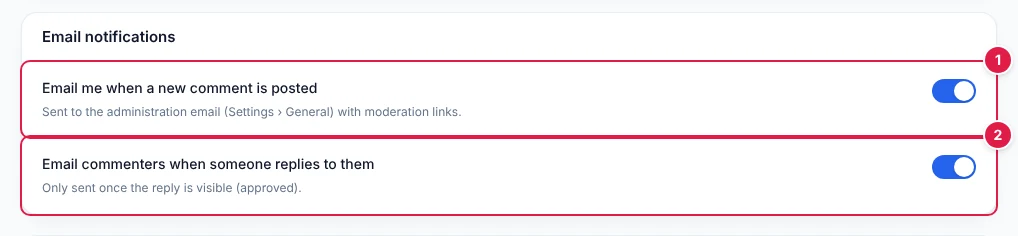
- A new comment emails the administration email (set under Settings → General), with links to approve or remove it.
- A reply emails the person who wrote the original comment, once the reply is visible.
Every email uses the same simple template with your site's name, so they look alike whatever sent them.
Before you require two-step verification: sign-in codes travel by email. Send a test first. If mail stops working while codes are required, see Locked out because codes don't arrive.
Quick start
- Open Settings → Email. A new site already sends as
noreply@its own domain, with PHP'smail(). - Press Send test. If the message reaches your inbox (not spam), you're done.
- If it doesn't arrive, or lands in spam, switch to SMTP with your host's mailbox or a sending service, and add the DNS records your provider gives you.
Settings → Email
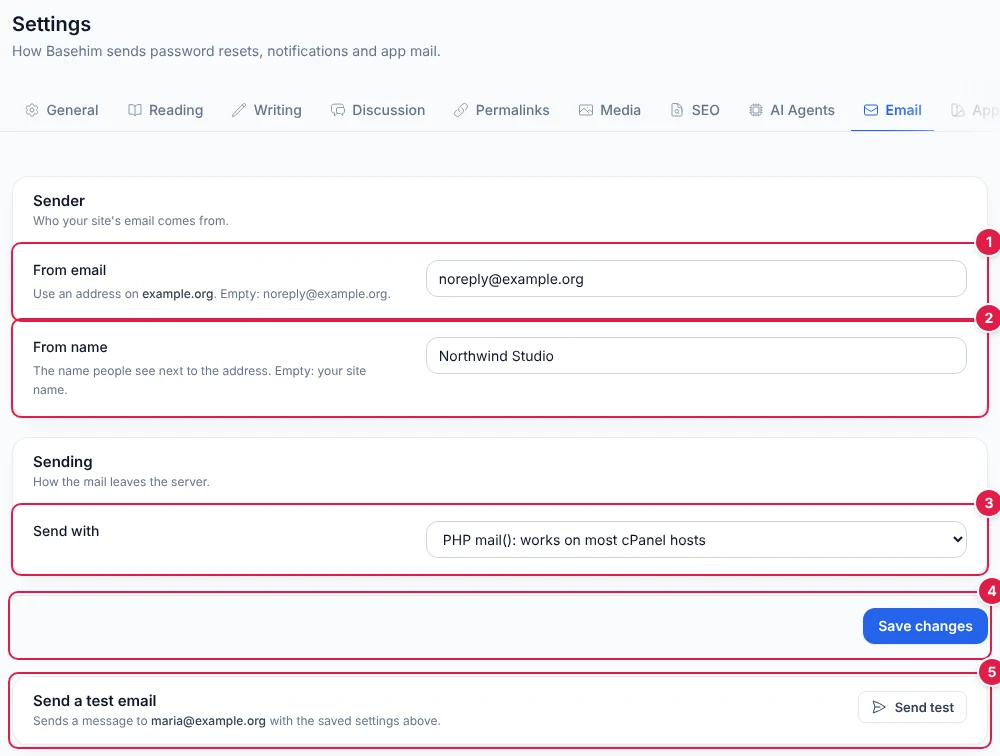
- From email: the address your mail comes from. Use one on your site's own domain; left empty, Basehim uses
noreply@that domain. - From name: the name people see next to it. Left empty, it follows your site's name, including when you rename the site.
- Send with: PHP
mail()or SMTP (see Which method to use). - Save changes. The test below always uses the saved settings, so save first.
- Send a test email to your own account's address.
The domain comes from your site's address, without www., as it was saved when you installed Basehim. Links in emails, such as password reset links, are built from the same address. If the site's address isn't a public domain, the screen says so and there is no automatic sender: type a From email.
The From address
Mail servers check that a message really comes from the domain in its From address. Sending as a Gmail, Outlook or Yahoo address through your own server fails that check, so the message is refused or filed as spam, and sign-in codes and password resets with it. Basehim warns when the From address isn't on your domain:
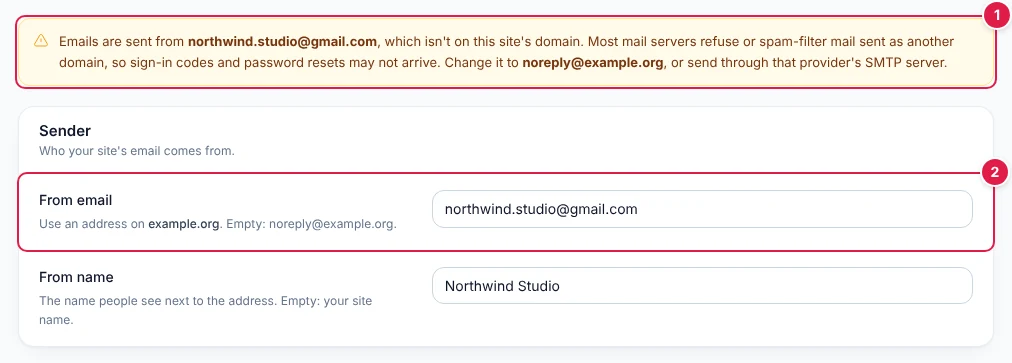
- The warning names the address in use and suggests one on your domain.
- The From email that caused it. Change it to an address on your domain, or send through that provider's own SMTP server (for Gmail, see providers).
The address doesn't need to be a real mailbox for PHP mail(), but replies go nowhere. If people may reply, use an address someone reads, or let apps set a Reply-To.
Which method to use
| PHP mail() | SMTP | |
|---|---|---|
| How it works | Hands the message to the web server's own mail program | Signs in to a mail server, like an email app does, and sends through it |
| Setup | Nothing: the default | A host, port, encryption, username and password |
| Reaches the inbox | Often, on hosts that sign mail for your domain (most cPanel hosts do) | More reliably: the provider signs and sends it |
| Error messages | Only "mail() returned false"; the reason is in the server's mail log | The mail server's own answer, shown in the test result |
| Good for | A new site, light mail, a host with email for your domain | Sign-in codes for many people, comment-heavy sites, apps that send a lot |
When PHP mail() sends from your own domain, Basehim also tells the server to use your From address for bounced messages, so they come back to you rather than to your hosting account.
Sending through SMTP
Choose SMTP in Send with and the server details appear.
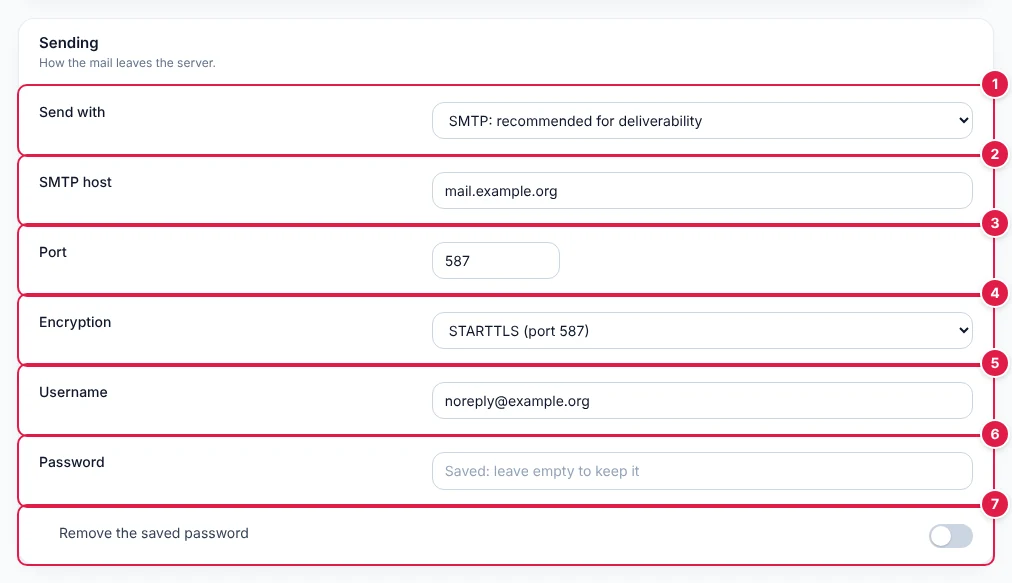
- Send with: SMTP.
- SMTP host: the server name your provider gives you.
- Port: usually 587 or 465.
- Encryption must match the port: STARTTLS for 587, SSL for 465. None only for a server on the same machine or network.
- Username: usually the full email address, or what your provider names (SendGrid's is the word
apikey). - Password: never shown again once saved. Leave it empty to keep it, or type a new one to replace it.
- Remove the saved password, for example when you switch to a server that doesn't sign in.
Basehim connects, upgrades to an encrypted connection when STARTTLS is chosen, signs in with the username and password, and sends. It waits up to 15 seconds for the server at each step. There is no queue: mail is sent while the page that triggered it is answered, so a slow server slows that page down.
Settings for common providers
These are the providers' published settings at the time of writing; their own help pages have the final word.
| Provider | SMTP host | Port and encryption | Username | Password |
|---|---|---|---|---|
| Your host's mailbox (cPanel, Plesk, DirectAdmin) | as the control panel's email client settings show, often mail.yourdomain.com | 465 SSL, or 587 STARTTLS | the full mailbox address | the mailbox's password |
| Gmail, Google Workspace | smtp.gmail.com | 587 STARTTLS, or 465 SSL | your full address | an app password. The account needs 2-Step Verification; a normal password is refused |
| Microsoft 365 | smtp.office365.com | 587 STARTTLS | the mailbox address | the mailbox password, while Microsoft still allows it (see the note below) |
| Zoho Mail | smtp.zoho.com; smtppro.zoho.com for paid plans with your own domain | 465 SSL, or 587 STARTTLS | your address | your password, or an app-specific password with two-factor on |
| Amazon SES | email-smtp.region.amazonaws.com | 587 STARTTLS, or 465 SSL | the SMTP username from the SES console | its SMTP password. IAM access keys don't work |
| SendGrid | smtp.sendgrid.net | 587 STARTTLS, or 465 SSL | the word apikey | an API key with Mail permission |
| Mailgun | smtp.mailgun.org; smtp.eu.mailgun.org for EU domains | 587 STARTTLS | the domain's SMTP login, such as postmaster@mg.yourdomain.com | its SMTP password |
| Brevo | smtp-relay.brevo.com | 587 STARTTLS, or 465 SSL | the SMTP login on Brevo's SMTP & API page | an SMTP key (not an API key) |
| Postmark | smtp.postmarkapp.com | 587 STARTTLS | the server API token | the same token |
- Gmail sends up to about 500 messages a day from a personal account and 2,000 from Workspace. Fine for sign-in codes, not for a busy site.
- Microsoft 365 is retiring password sign-in for SMTP. It is planned to be off by default for existing organisations from the end of December 2026, and new organisations won't get it at all. Basehim signs in with a password, so when that happens the test fails with 550 5.7.30 Basic authentication is not supported. Use a sending service, or your host's mailbox, instead.
- Sending services (SES, SendGrid, Mailgun, Brevo, Postmark) first ask you to verify your domain with a few DNS records. Until then they may refuse your From address, or send only to verified addresses (Amazon SES starts in a sandbox).
- Port 25 is blocked by most hosting and cloud providers for outgoing mail. Use 587 or 465; some services also offer 2525.
Send a test email
Send test sends a message to the email address of the account you are signed in with, using the saved settings. The result appears at the top of the screen:

- Accepted means the mail server took the message, not that it reached the inbox. Check the inbox and the spam folder. If it is in spam, see Getting into the inbox.
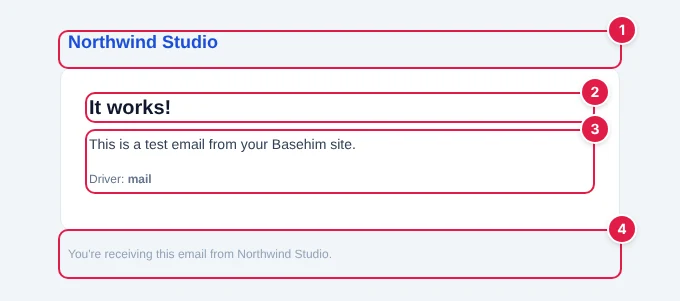
- Your site's name.
- The heading: It works! The subject line is Basehim test email.
- The message, ending with the method that sent it, and for SMTP the server and port.
- The footer: You're receiving this email from your site.
When sending fails, the result says what the mail server answered:

- Basehim's step (SMTP authentication failed), then the mail server's own answer. Troubleshooting lists what each one means.
Getting into the inbox
Gmail, Outlook and Yahoo decide whether to trust a message by checking DNS records on the From address's domain. Since 2024, Gmail and Yahoo require every sender to pass SPF or DKIM, and bulk senders all three. You add these records where your domain's DNS is managed: your host's control panel, your registrar or Cloudflare.
| Record | What it says | Example |
|---|---|---|
SPF (TXT on example.org) | which servers may send mail for the domain. Only one SPF record per domain: add each provider to it. | v=spf1 a mx include:_spf.google.com ~all |
| DKIM (TXT or CNAME, name from the provider) | a signature key, so receivers can check the message wasn't forged or changed | given by your host or sending service |
DMARC (TXT on _dmarc.example.org) | what to do with mail that fails SPF and DKIM, and where to send reports. Start with p=none and tighten later. | v=DMARC1; p=none; rua=mailto:dmarc@example.org |
- cPanel has an Email Deliverability page that checks SPF and DKIM for each domain and can add the records for you when the domain's DNS is on the same server.
- Sending services show the exact SPF and DKIM records to add when you verify your domain.
- Check a delivered message: in Gmail, open it and choose Show original. SPF, DKIM and DMARC should each say PASS.
- Keep the From address on the domain the records are for, as Basehim suggests.
Where failures are recorded
Every email that fails to send, from core or an app, is written to the site's log with the reason and the recipient. Open System → Logs and choose the day:
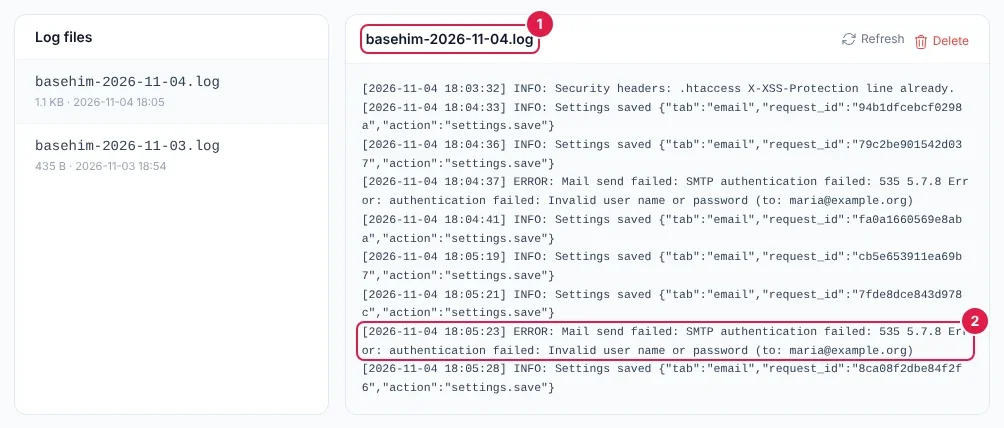
- The log for the day you choose.
- An
ERROR: Mail send failed:line with the server's answer and the address it was for. A password reset that never arrived leaves one of these.
Apps' mail is also recorded in the app's own log (Apps → the app → Logs), as Sent mail or Mail failed with the subject. A PHP mail() that the server accepts but later drops leaves nothing here; your host's mail log, or the mailbox's bounce messages, will show it.
Troubleshooting
| The test says | What it means and what to do |
|---|---|
| PHP mail() returned false — check the server mail log. | The server has no working mail program, or mail() is disabled. Ask your host, or use SMTP. |
| SMTP connect failed: Connection refused or timed out | Wrong host or port, or your host blocks outgoing connections on that port. Check both; try the other of 587 and 465; ask your host whether outgoing SMTP is allowed, or use their own mailbox. |
| SMTP greeting failed, or a long wait before an error | The encryption doesn't match the port: SSL on 465, STARTTLS on 587. |
| STARTTLS refused | This port doesn't offer STARTTLS. Use SSL on 465, or check the port. |
| TLS negotiation failed. | The server's certificate doesn't match the host name you typed, or is invalid. On shared hosting use the server's own name from the control panel instead of mail.yourdomain.com. |
| AUTH LOGIN not accepted | The server won't take a password on this connection: it may need encryption first, or accept only OAuth sign-in (Microsoft 365 after basic authentication is retired). |
| SMTP authentication failed: 535 … | Wrong username or password. Gmail needs an app password (534-5.7.9 Application-specific password required); SendGrid's username is apikey; SES needs its SMTP credentials, not IAM keys. |
| MAIL FROM rejected | This account may not send as the From address. Use the mailbox's own address, or verify the domain or sender with your provider. |
| Recipient rejected | The address is wrong, or the server won't relay without signing in: check the username and password are saved. |
| Message rejected: … | The server took the details but refused the message, often a sending limit or a policy. Its answer says which. |
| Cancelled by mail.before_send filter. | An app stopped the message on purpose. Check which apps you have switched on under Apps. |
| Sent, but nothing arrives | Look in spam, check the address on your account, add SPF and DKIM, and try SMTP. With mail(), ask your host for the mail log. |
| Links in emails go to the wrong address | The site's address was saved wrongly when you installed. It can't be changed from the dashboard yet: ask your host to correct APP_URL in Basehim's .env file. |
Locked out because codes don't arrive
If two-step verification is required and mail has stopped working, nobody can finish signing in. To get back in, open your hosting control panel's File Manager, go into Basehim's storage folder and create an empty file named disable-2fa. If you can't, ask your host to do it. This suspends two-step verification for everyone. Sign in, fix and test mail, then delete the file: Settings → Authentication shows a warning for as long as it exists.
The SMTP password
- It is stored with the site's other settings in the database, and never sent back to the browser: the screen shows only that one is saved.
- AI assistants and other programs connected to your site never see it, whatever access you gave them.
- Prefer a credential made for sending only: an app password, an SMTP key or a sending-only API key, rather than your main email password. You can revoke it without changing anything else.
- Only people who may change settings can open Settings → Email.
Limits
- No second try. Each email is sent the moment something triggers it. If sending fails, it isn't tried again; the log keeps the failure.
- Password sign-in only. SMTP signs in with a username and password. The newer sign-in method Microsoft 365 is moving to isn't supported.
- No attachments. Emails link to files instead.
- One template for all emails, with the site's name. There is no editor for the wording of core's emails.
- No sent-mail history in the admin: only failures are logged.
Related
- How to install Basehim on your hosting: the installer sets your site's address and the default sender.
- How to set up your site: the administration email, under Settings → General.
Next: Back to the Guide
Need more help?
Every step of running your site, in order, with screenshots.
Leave a comment