
Connect an AI assistant to your site
 Asif Mughal
5 min read
Asif Mughal
5 min read
Every Basehim site has an MCP server at /mcp. Connect an AI assistant to it, and the assistant can search your content, draft posts, tidy categories, look through the media library and help moderate comments. It works through the same permissions as a person signed in to your admin.
This tutorial connects Claude, then shows the same thing with an API key for other MCP clients.
You need: your site's address over HTTPS, an account on the site, and an assistant that supports remote MCP servers ("custom connectors").
Step 1: Choose the account
The assistant acts as the account that approves it, never with more power than that account has. So decide first:
- To have it draft posts for review, approve it while signed in as a contributor: its posts go to pending.
- To have it publish its own posts, use an author account.
- To have it moderate comments or edit anyone's posts, it needs an editor.
- Only approve it as an administrator if you want it to read settings and users too.
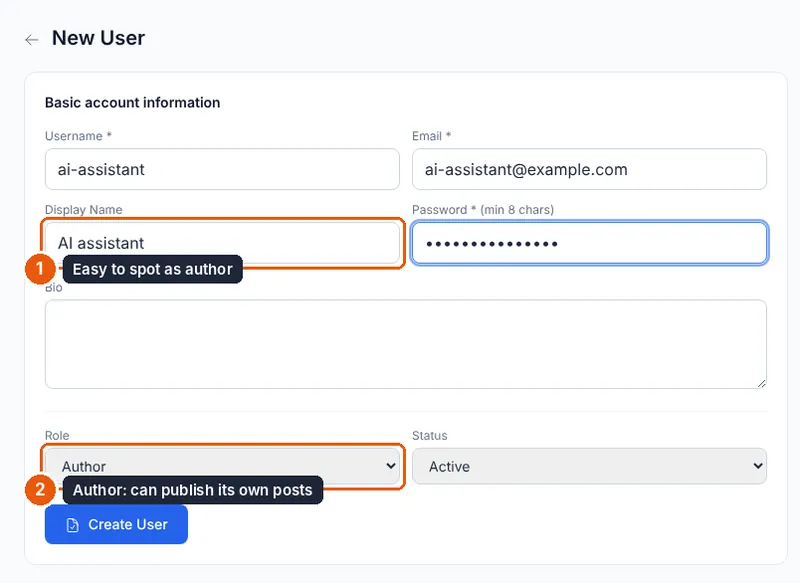
Creating a separate account for the assistant ("AI assistant", role Author) makes its work easy to spot: every post it writes carries that author name.
Step 2: Add the connector in Claude
- In Claude, go to Customize → Connectors, click + Add and choose Add custom connector. On Team and Enterprise plans, an owner adds it under Organization settings → Connectors, and members then click Connect next to it under Customize → Connectors.
- Give it a name, such as your site's name, and enter
https://your-site.com/mcp. - Keep OAuth as the sign-in method. Under OAuth client, let Claude register itself: Basehim supports dynamic client registration, so there's no client ID or secret to create.
- Click Add. If you didn't choose to sign in straight away, click Connect next to the connector.
Claude finds your site's OAuth endpoints from /mcp and registers itself.
Step 3: Sign in and approve
A browser window opens your site:
- Sign in with the account you chose in Step 1. If you're already signed in to the admin as someone else, sign out first.
- The Authorize screen names the application and lists the permissions it asks for, such as Read posts & pages and Create / update / delete posts & pages.
- Click Allow access.
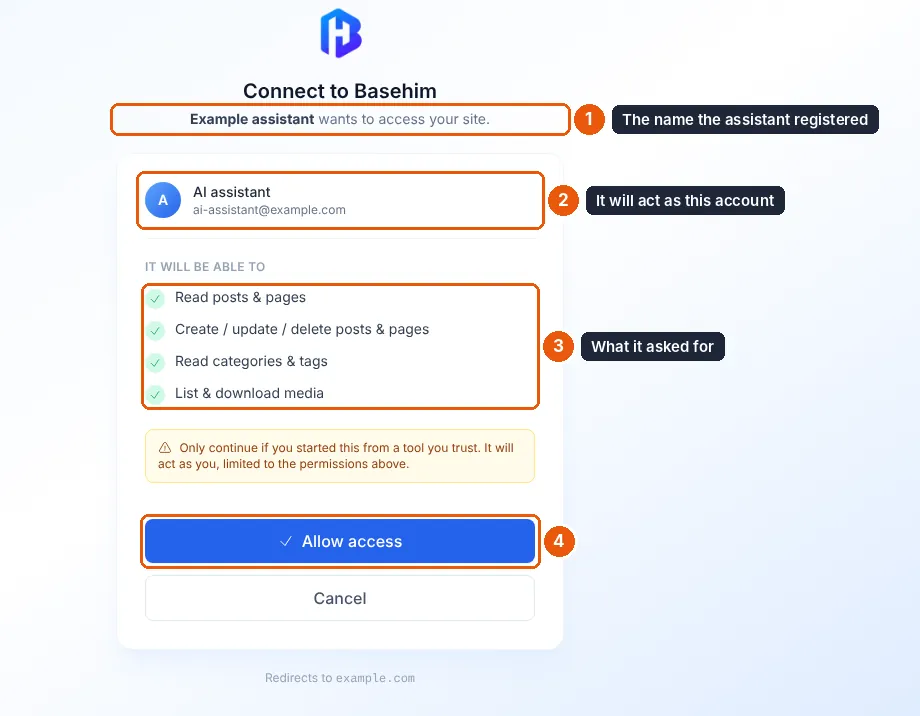
Permissions your account's role doesn't have are dropped at this point. An author never grants access to users or settings, even if they're listed. The window closes and Claude shows the connector as connected.
Step 4: Try it
Start a new chat and make sure the connector is switched on (the + menu, then Connectors). Then ask for real work:
What have we published in the last month? Group the posts by category and point out any category we've neglected.
Draft a post announcing our new opening hours: weekdays 9–6, Saturdays 10–2. Keep it under 150 words and save it as a draft.
Find posts that have no excerpt and suggest one for each. Don't change anything yet.
List comments waiting for moderation and tell me which look like spam.
Claude calls tools such as search_content, list_posts, get_post, create_post and list_comments, and asks before using any tool you haven't set to always allow. Anything it creates is a draft unless you ask it to publish, and your role allows it. The full list of tools is in MCP and AI agents.
Step 5: Review its work
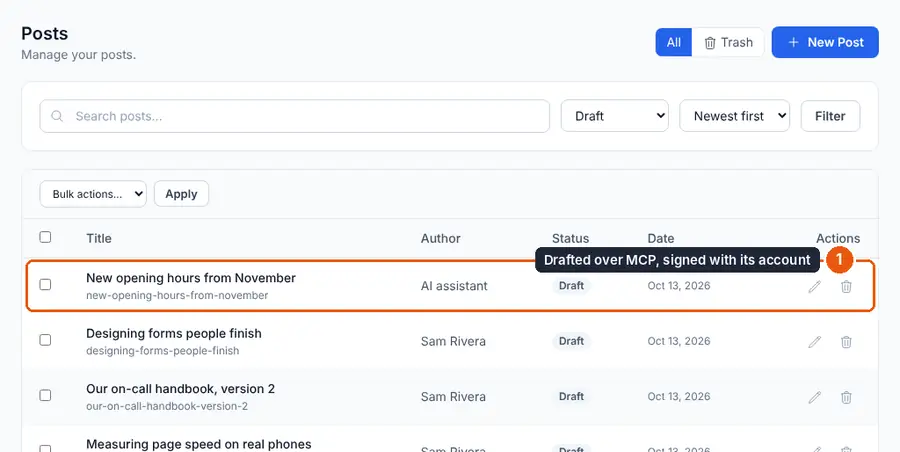
- Its drafts appear under Posts with the account's name as author.
- If its role lacks
unfiltered_html, any scripts or unsafe HTML it wrote were removed, and it was told so. - Under Customize → Connectors in Claude, you can block individual tools you never want it to use, such as
trash_post.
Using an API key instead
OAuth suits chat assistants. For scripts, agent frameworks and command-line tools, an API key is simpler:
- In the admin, open API → Keys and create a key with only the scopes it needs, for example
posts:readandtaxonomies:readfor a read-only research agent. - Give your MCP client the URL and the key as a bearer token. For Claude Code:
claude mcp add --transport http my-site https://your-site.com/mcp \
--header "Authorization: Bearer basehim_your_key"- Or call it directly to check that it works:
curl -s -X POST https://your-site.com/mcp \
  -H "Authorization: Bearer basehim_your_key" -H 'Content-Type: application/json' \
  -d '{"jsonrpc":"2.0","id":1,"method":"tools/list"}'
A key lists only the tools its scopes allow. Revoke it under API → Keys and it stops working at once.
Disconnecting
- In the assistant: remove the connector (Claude: Customize → Connectors, then the menu, then Remove).
- On your site: in Basehim 1.2.53 and earlier there's no list of connected assistants in the admin. A removed connector's access lasts until its tokens expire: up to 8 hours for the access token and 30 days for refreshing. To cut it off immediately, suspend the account it used. That is one more reason to give the assistant an account of its own.
- For an API key: revoke it under API → Keys.
Troubleshooting
| Problem | Fix |
|---|---|
| "Couldn't connect" when adding | Check that https://your-site.com/mcp opens in a browser and shows a small JSON document. The site must be reachable over HTTPS from the internet |
| Fewer tools than expected | The token lacks scopes. Your role can't grant some, or the client asked for fewer. Reconnect while signed in with a stronger role, or use a key with the scopes ticked |
| Tools fail with "missing scope" | As above |
| Posts arrive as pending | The account can't publish. That's working as intended for a contributor |
To add tools of your own, for example reports from your app's data, see Give your app an MCP tool.
Leave a comment