
Build your first app: an announcement bar
 Asif Mughal
8 min read
Asif Mughal
8 min read
In this tutorial you'll build Announcement Bar, a small app that shows a message at the bottom of every page of your site. Site owners edit the message, an optional link and a colour on a screen in the admin.
It's a small app, but it uses the pieces almost every app needs: a manifest, the entry class, an admin screen with a safe form, per-app settings, a view, and output on the public site. It takes about twenty minutes.
You need: a Basehim site you can add files to (a local install is ideal), signed in as an administrator.
Step 1: Create the folder and the manifest
Apps live in content/apps/, one folder each. Create this structure:
content/apps/announcement-bar/
├── app.json
├── src/
│   └── App.php
├── views/
│   ├── settings.php
│   └── bar.php
└── assets/
    └── bar.css
Start with app.json, which tells Basehim what the app is:
{
  "name": "Announcement Bar",
  "slug": "announcement-bar",
  "version": "1.0.0",
  "description": "Shows a short message at the bottom of every page of the site.",
  "developer": { "name": "Your Name", "url": "https://example.com" },
  "namespace": "Tutorial\\AnnouncementBar",
  "requires": { "php": ">=8.1", "basehim": ">=1.2.51" }
}slugmatches the folder name.namespaceis how Basehim finds your PHP class: it mapsTutorial\AnnouncementBar\to thesrc/folder. Note the doubled backslash, which JSON requires.- There's no
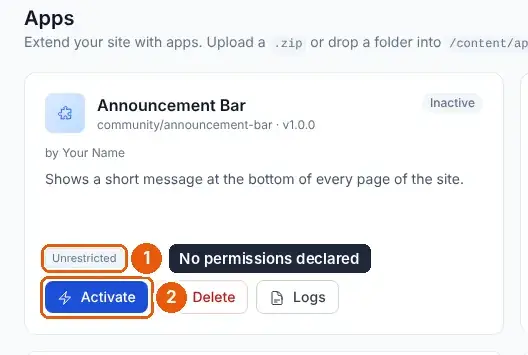
permissionslist. This app only uses its own settings, which never need permission.
Step 2: Write the entry class
Create src/App.php:
<?php

namespace Tutorial\AnnouncementBar;

use App\Core\Request;
use App\Core\Response;

class App extends \App\Core\App
{
    public function boot(): void
    {
        // 1. A sidebar item and the screen it opens (/admin/announcement-bar).
        $this->addAdminMenu([
            'url'   => '/admin/announcement-bar',
            'label' => 'Announcement',
            'icon'  => 'megaphone',
        ]);
        $this->adminGet('/announcement-bar', [$this, 'showSettings']);
        $this->adminPost('/announcement-bar', [$this, 'saveSettings']);

        // 2. The bar itself, on every public page, when it is switched on.
        if ($this->getSetting('enabled', false) && $this->getSetting('message', '') !== '') {
            $this->addHead(fn() => '<link rel="stylesheet" href="' . htmlspecialchars($this->asset('bar.css')) . '">');
            $this->addFooter(fn() => $this->view('bar', [
                'message' => $this->getSetting('message'),
                'link'    => $this->getSetting('link', ''),
                'colour'  => $this->getSetting('colour', '#1d4ed8'),
            ]));
        }
    }
}
boot() runs on every request while the app is active, so it only registers things:
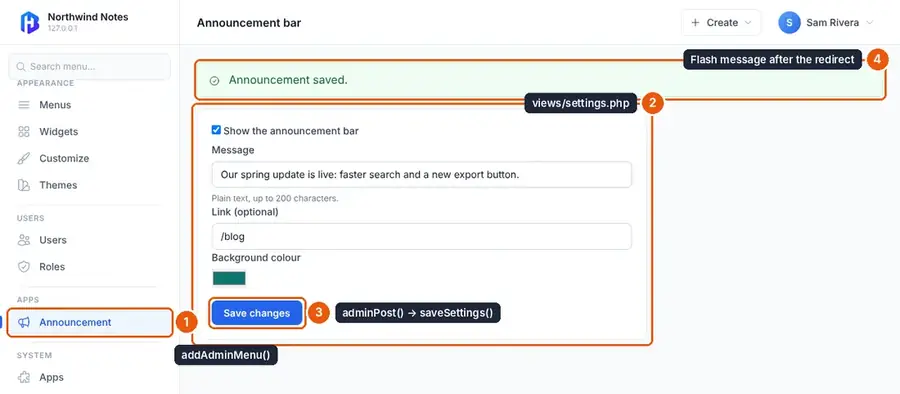
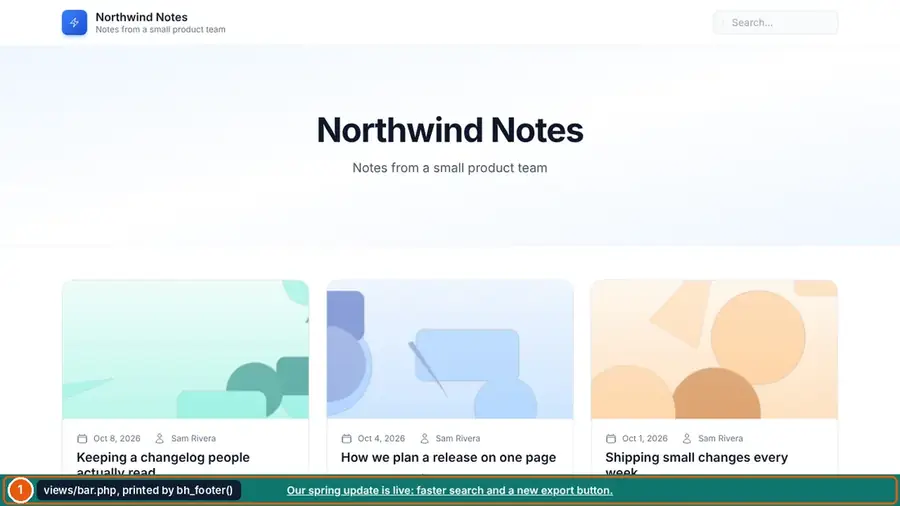
addAdminMenu()adds the sidebar item.adminGet()andadminPost()add/admin/announcement-barbehind the admin's sign-in and access checks.addHead()andaddFooter()hand markup to the theme'sbh_head()andbh_footer()calls. That works with any theme, without editing a template.
The callbacks run later, only when a page is actually rendered.
Step 3: Show the settings screen
Add this method to the class:
    public function showSettings(Request $request): Response
    {
        $html = $this->adminView('settings', 'Announcement bar', [
            'enabled' => (bool) $this->getSetting('enabled', false),
            'message' => (string) $this->getSetting('message', ''),
            'link'    => (string) $this->getSetting('link', ''),
            'colour'  => (string) $this->getSetting('colour', '#1d4ed8'),
            'csrf'    => $this->session()->csrfToken(),
        ]);
        return Response::html($html);
    }
adminView() renders views/settings.php inside the admin layout: sidebar, top bar and flash messages. Create the view:
<?php /** @var bool $enabled @var string $message @var string $link @var string $colour @var string $csrf */ ?>
<form method="post" action="<?= $base ?>/admin/announcement-bar" class="bh-card bh-card--pad" style="max-width: 640px">
    <input type="hidden" name="_csrf" value="<?= htmlspecialchars($csrf) ?>">

    <label class="bh-label">
        <input type="checkbox" name="enabled" value="1" <?= $enabled ? 'checked' : '' ?>>
        Show the announcement bar
    </label>

    <label class="bh-label" for="ab-message">Message</label>
    <input id="ab-message" name="message" class="bh-input" maxlength="200"
           value="<?= htmlspecialchars($message) ?>">
    <p class="bh-help">Plain text, up to 200 characters.</p>

    <label class="bh-label" for="ab-link">Link (optional)</label>
    <input id="ab-link" name="link" class="bh-input" placeholder="https://… or /pricing"
           value="<?= htmlspecialchars($link) ?>">

    <label class="bh-label" for="ab-colour">Background colour</label>
    <input id="ab-colour" name="colour" type="color" value="<?= htmlspecialchars($colour) ?>">

    <p style="margin-top: 1rem">
        <button type="submit" class="bh-btn bh-btn--primary">Save changes</button>
    </p>
</form>
Three details matter:
$baseis passed to every view. It keeps the form working when Basehim is installed in a subfolder.- The hidden
_csrffield carries the session's CSRF token. You'll check it when the form comes back. - Every value is escaped with
htmlspecialchars(). The classes (bh-card,bh-input,bh-btn--primary) are the admin's own components, so the screen matches the rest of the admin.
Step 4: Save the form safely
Add the save handler and a small helper:
    public function saveSettings(Request $request): Response
    {
        // adminPost() routes are signed-in only, but the form token is ours to check.
        if (!$this->session()->verifyCsrf((string) $request->input('_csrf'))) {
            return $this->back('error', 'Your session expired. Reload the page and try again.');
        }

        $message = trim((string) $request->input('message', ''));
        $link    = trim((string) $request->input('link', ''));
        $colour  = (string) $request->input('colour', '#1d4ed8');

        if (mb_strlen($message) > 200) {
            return $this->back('error', 'Keep the message under 200 characters.');
        }
        if ($link !== '' && !preg_match('#^(https?://|/(?!/))#i', $link)) {
            return $this->back('error', 'The link must start with https://, http:// or a single /.');
        }
        if (!preg_match('/^#[0-9a-f]{6}$/i', $colour)) {
            $colour = '#1d4ed8';
        }

        $this->setSetting('enabled', $request->input('enabled') === '1');
        $this->setSetting('message', $message);
        $this->setSetting('link', $link);
        $this->setSetting('colour', $colour);

        return $this->back('success', 'Announcement saved.');
    }

    /** Redirect to the settings screen with a message for the admin's flash bar. */
    private function back(string $type, string $message): Response
    {
        $this->session()->flash('_flash', ['type' => $type, 'message' => $message]);
        $base = defined('BASEHIM_BASE') ? BASEHIM_BASE : '';
        return Response::redirect($base . '/admin/announcement-bar');
    }
What each check protects against:
- The CSRF check stops another website from submitting this form in a signed-in administrator's name. Core checks tokens on its own forms, but your
adminPost()routes are your responsibility. - The link check only allows
http(s)://addresses and same-site paths. That keeps outjavascript:links and protocol-relative//other-sitelinks. - The colour check matters because the colour is printed into a
styleattribute. - Redirecting after saving means a page reload doesn't send the form twice. The flash message appears once, at the top of the next page.
setSetting() stores values in the app's own settings namespace (app:announcement-bar), which is removed when the app is uninstalled.
Step 5: Render the bar
Create views/bar.php:
<div class="ab-bar" role="region" aria-label="Announcement" style="background: <?= htmlspecialchars($colour) ?>">
    <?php if ($link !== ''): ?>
        <a href="<?= htmlspecialchars($link) ?>"><?= htmlspecialchars($message) ?></a>
    <?php else: ?>
        <?= htmlspecialchars($message) ?>
    <?php endif; ?>
</div>
And assets/bar.css:
.ab-bar {
    position: fixed; left: 0; right: 0; bottom: 0; z-index: 1000;
    padding: .75rem 1rem; text-align: center;
    color: #fff; font: 600 15px/1.4 system-ui, sans-serif;
}
.ab-bar a { color: inherit; text-decoration: underline; }
Files in assets/ are the only part of an app that browsers can load. $this->asset('bar.css') builds the right URL, /content/apps/announcement-bar/assets/bar.css, including any subfolder.
Step 6: Activate and try it
- Go to Admin → Apps. Announcement Bar is listed. Click Activate.
- Announcement appears in the sidebar. Open it, tick Show the announcement bar, type a message, add a link such as
/blog, pick a colour and click Save changes. You should see "Announcement saved."
- Open your site in another tab. The bar is at the bottom of every page.
Now check the safety nets:
- Enter
javascript:alert(1)as the link and save. You get the error message, and nothing is stored. - Sign out and open
/admin/announcement-bar. You're sent to the sign-in page. - Sign in as an author. The screen isn't in the sidebar, and the URL is refused. App screens require the app's access capability,
access_app:announcement-bar, which administrators have.
If something doesn't appear, check Apps → Logs for this app and storage/logs/basehim-*.log. An exception in boot() is logged as "App boot() threw".
Step 7: Package it
Zip the announcement-bar folder (so the archive contains announcement-bar/app.json). Any Basehim site can install it under Apps → Upload. To ship an update, raise version in app.json. Sites keep their settings across updates.
What you learned
app.jsonnames the app and maps its namespace tosrc/.boot()registers menus, routes and output on every request; the real work happens in callbacks.adminGet()/adminPost()give you admin screens behind sign-in and per-app access.- POST handlers must check the CSRF token; validate everything and escape everything.
getSetting()/setSetting()store your app's own data.addHead()/addFooter()put markup on public pages through any theme.
Next steps
- Save without reloading the page: Add a "Was this helpful?" widget with AJAX.
- Run work in the background: Import an RSS feed on a schedule.
- The full reference: App development and Admin screens, routes and UI components.
Leave a comment